How Rajasthan Gramin Bank Internet Banking (RGB) Is Changing Money Management in Rural Rajasthan
Rajasthan Gramin Bank’s new internet banking promises city-style digital power in the heart of rural Rajasthan. But is it really that smooth? Discover hidden features, shocking app gaps, farmer-focused perks, and 2025 merger surprises that could quietly change how you move every rupee onl
Rajasthan Gramin Bank (RGB) internet banking offers rural Indians a secure way to manage finances online, especially after its 2025 amalgamation into a single entity sponsored by State Bank of India. With over 1,500 branches across Rajasthan, this service bridges urban digital convenience to village life. From fund transfers to bill payments, it empowers users without branch visits.
Bank Background
Rajasthan Gramin Bank formed on May 1, 2025, by merging Rajasthan Marudhara Gramin Bank and Baroda Rajasthan Kshetriya Gramin Bank under the “One State, One RRB” policy. Headquartered in Jaipur, it operates 1,593 branches covering all 33 districts, focusing on rural and semi-urban areas. Sponsored by State Bank of India, RGB prioritizes financial inclusion for farmers, small businesses, and households in Rajasthan’s deserts and villages.
This structure enhances service delivery, including digital tools like internet banking at https://inb.rgb.bank.in, updated per RBI guidelines for better security. For rural Indians, RGB represents trustworthy banking amid India’s digital push via PMJDY and Digital India.
Service Overview
RGB internet banking provides personal and corporate access for everyday transactions. Retail users handle savings accounts, while corporate users manage current accounts. Key offerings include balance checks, e-statements, fund transfers (IMPS, NEFT, RTGS), cheque stops, and utility payments.
The portal supports own-account transfers, inter-bank moves, and beneficiary additions without prior setup in some cases. Mobile integration via RGB app complements this, offering card blocks and PIN generation. In rural Rajasthan, these features cut travel time to branches, vital during monsoons or harvest seasons.




Registration Steps
A. Pre‑requisites to keep ready
- Active RGB bank account (saving/current/KCC etc.) with CBS (core banking) status active.
- CIF number (printed on passbook or available from branch).
- Registered mobile number linked with your RGB account for OTP/SMS alerts.
- PAN and date of birth/firm registration date as per bank records (for KYC matching).
- Valid ATM/debit card (if bank links INB activation to card for some users; otherwise branch activation).
- Stable internet connection and personal device (mobile/PC) – avoid cyber café for first registration.
B. Retail User – New Registration (Step by Step)
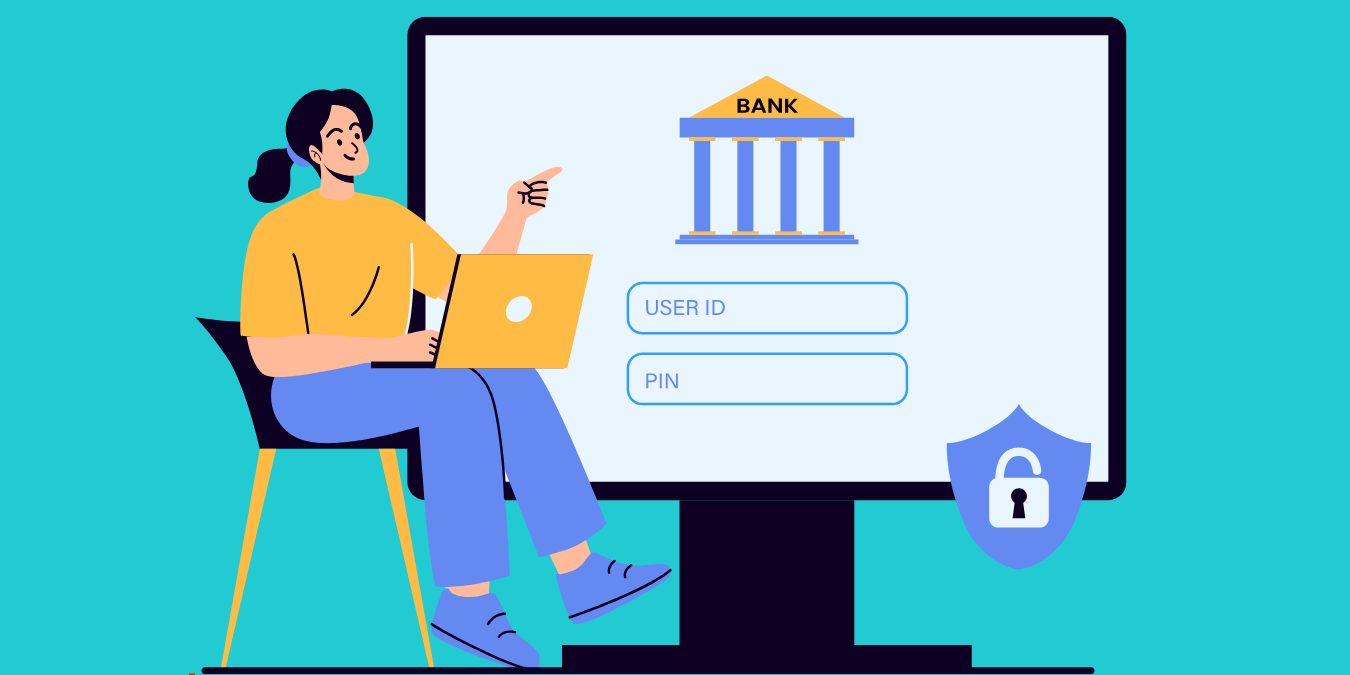
Step 1: Open official RGB INB portal
- Open a browser and type: https://inb.rgb.bank.in in the address bar (not in Google search).
- Check that the site shows “Rajasthan Gramin Bank” and uses secure HTTPS with padlock, to avoid fake pages.
Step 2: Choose “Retail User”
- On the home page, locate the “Retail User” section.
- Click on “New User Registration” under Retail User.
Step 3: Enter CIF and basic details
- On the registration page, you will be asked for:
- CIF number
- Date of Birth (for individuals)
- PAN (sometimes optional but recommended)
- Captcha code displayed on screen.
- Carefully type the CIF number exactly as in passbook and choose correct date format (often DD/MM/YYYY).
- Enter the captcha and click on “Submit” or “Check” to validate your details.
Step 4: Validation and branch linkage
- If your CIF is already marked “INB = Yes” in the bank system, portal proceeds directly.
- If you are a first-time internet banking user, INB flag may be “No”; in that case:
- Download/collect the Internet Banking application form from your home branch or branch website (earlier RMGB/BRKGB forms, now RGB).
- Fill name, CIF, account numbers, mobile, email and sign as per bank records.
- Submit to your home branch and ask staff to enable “INB – Retail” for your CIF.
- Bank processes request and activates INB in CBS; this may take some working days.
Step 5: Create username and login password
- Once INB flag is active, revisit https://inb.rgb.bank.in and again choose Retail → New User Registration.
- After CIF validation, the system will prompt you to:
- Choose a unique username (user ID)
- Set login password as per rules (length, special characters etc.).
- Do not use your name, date of birth, mobile number or simple patterns like 123456.
- Confirm password and submit; an OTP may be sent to your registered mobile for confirmation.
Step 6: Confirmation of registration
- After successful submission and OTP verification, portal shows a success message that your retail internet banking registration is complete.
- Note down:
- Username (write in a diary kept at home, not on mobile)
- Date/time of registration for future reference.
- You may receive an SMS from RGB confirming activation of internet banking services.
C. Corporate User – New Registration (Step by Step)
Corporate (firm, society, trust, company) cannot self-register fully online; branch plays a bigger role.
Step 1: Visit RGB INB portal
- Go to https://inb.rgb.bank.in in browser.
- On home page, locate “Corporate User” section.
Step 2: Understand the on-screen message
- When you click “New User” under Corporate User, a message appears like:
“Please contact the branch admin and provide the required details for creating a new corporate user.” - This means only the branch can create corporate ID; online self-registration is not allowed.
Step 3: Submit corporate INB form at branch
- Visit your home branch (where main current account is maintained).
- Ask for “Corporate Internet Banking application form” for RGB (earlier RMGB/BRKGB corporate INB form).
- Fill details:
- Entity name, address, PAN, GST etc.
- Authorized signatories, their CIFs and roles (view only, maker, checker).
- Mobile number and email for alerts and OTPs.
- Attach KYC documents, resolution/authority letter, and sign as per account mandate.
- Submit the form and keep the branch acknowledgment.
Step 4: Branch creates corporate user
- Branch admin processes request in CBS and corporate INB system.
- Bank generates:
- Corporate ID
- User IDs for each authorized signatory
- Temporary passwords (may be given in sealed PIN mailers or sent via secure mode).
- Once activated, branch will intimate you that corporate internet banking is ready to use.
Step 5: First login for corporate
- Go again to https://inb.rgb.bank.in.
- Under Corporate User, click “Login”.
- Enter:
- Corporate ID
- User ID
- Password
- Captcha, then press “Login”.
- On first login, change your password immediately and set transaction password if required.
D. First Login Process (Retail Users)
Step 1: Open login page
- On the portal, under Retail User, click “Login”.
- A security warning/information page may appear; click “Continue to Login”.
Step 2: Enter credentials
- Type your username, password, and captcha code shown on screen.
- Check spelling and caps lock, then click “Login”.
Step 3: One‑time password and security questions (if prompted)
- For first login, the system may send an OTP to your registered mobile.
- Enter OTP correctly within the time limit.
- Some banks also ask to set:
- Secret questions/answers
- Personalized phrase or image for anti-phishing.
- Complete these steps to harden your security profile.
Step 4: Set/confirm MPIN or transaction password
- In many RRB platforms, retail internet banking uses:
- Login password (for access)
- Transaction password/MPIN (for fund transfers and payments).
- If portal asks to set transaction password/MPIN, choose a different code from login password.
- Do not share this MPIN with anyone, including branch staff.
E. MPIN Generation / Reset via Branch
- If you forget your MPIN/transaction password or portal does not allow online setting, visit your home branch.
- Ask for “Internet banking password reset/MPIN generation” request.
- Fill and sign the small request form; carry ID proof.
- Branch will reset MPIN or enable you to set it again through the portal or send a temporary PIN.
- After reset, log in and immediately change MPIN to a private, strong code.
F. Typical Rural Flow (Villagers, Kisan Credit Card Holders)
For many Rajasthan villagers, the journey practically looks like this:
- While visiting branch for Kisan Credit Card renewal, PM‑Kisan credit check, or crop loan, ask staff to:
- Link mobile number
- Enable internet banking (INB flag “Yes”).
- Fill internet banking form on the spot.
- After activation (few days), either:
- Come back to branch where staff/BC will help you open the site on PC and complete New User Registration, or
- Use your smartphone at home with help from a family member to register via CIF.
- First few times, do only balance enquiry and mini statement; learn screen flow before doing fund transfer.
Key Features
Here is a concise, point‑wise, detailed explanation of the key features you listed, aligned to Rajasthan Gramin Bank’s internet/mobile banking and rural Indian use cases.
1. Fund transfer options
- IMPS (Immediate Payment Service)
- 24×7 instant transfer to any bank account using account number–IFSC or mobile–MMID through RGB Mobile Banking/INB.
- Useful for urgent payments like sending money to children studying in cities or paying local suppliers late at night.
- NEFT (National Electronic Funds Transfer)
- Online transfers to any bank in India, processed in RBI’s NEFT system but now available 24×7.
- Good for routine transfers like rent, school fees, or vendor payments where a delay of some minutes is acceptable.
- RTGS (Real Time Gross Settlement)
- Designed for high‑value transfers, settled in real time on a one‑to‑one basis for large transactions.
- Useful for big-ticket purchases such as land, tractors, or machinery purchases from dealers.
- Within‑bank and own‑account transfer
- Transfer between two RGB accounts instantly (e.g., from savings to loan or KCC), often without extra charges.
- Ideal for quickly parking surplus crop income into RD/FD or repaying instalments on time from home.
2. Account management tools
- Real‑time balance enquiry
- Check available and ledger balance any time through internet or mobile banking without visiting branch or ATM.
- Helpful for farmers and small shopkeepers to confirm whether subsidies, MNREGA wages, or UPI receipts have come.
- Mini statement and detailed statement
- View recent transactions instantly and download full account statement as PDF from mobile or desktop.
- PDFs are useful for income proof for government schemes, MSME loans, or school/college documentation.
- Multiple account view
- If more than one account is mapped to the same CIF (savings, current, KCC etc.), they can usually be viewed under one login.
- This makes it easier for rural business owners to track both personal and shop accounts together.
3. Payment facilities
- Utility bill payments
- Many RRB-linked apps/INB allow electricity, water, DTH, mobile recharge and other bill payments directly from the account.
- For villagers, this avoids long queues at Bijli offices and agents, especially in summer and harvesting season.
- Insurance and other service payments
- Premiums for life/general insurance and other periodic payments can be made from RGB accounts using NEFT/IMPS or integrated biller options.
- This is convenient for PMJJBY, PMSBY, crop insurance or vehicle policy renewals before due date.
- Small-value transfers sometimes without beneficiary addition
- Some banks allow low-amount IMPS/UPI-type transfers without permanent beneficiary registration; RGB app supports quick P2P transfers.
- Useful when sending money only once or twice to a labourer, mason, or local vendor.
4. Security and control tools
- Cheque-related controls
- Check cheque status, raise stop-payment instruction or remove stop on cheque directly from the mobile app.
- This protects customers in case a cheque is lost, stolen or issued with a wrong amount from remote villages.
- ATM/debit card controls
- Block card instantly, generate PIN, set ATM channel limits, and switch card ON/OFF for extra safety.
- Very helpful when card is misplaced in weekly markets (haats) or while travelling in buses and trains.
- Non‑financial alerts and enquiries
- Regulatory‑grade security
- RGB’s move to the .bank.in domain for internet banking aligns with RBI’s focus on secure, sector-specific domains.
- Combined with OTP, encrypted sessions, and device-level controls, this reduces fraud risk for less tech‑savvy rural users.
5. Suitability for rural Indian users
- Supports life in remote areas
- Farmers can pay electricity bills and recharge phones from fields or homes where nearest town may be 20–30 km away.
- Merchants in small mandis can instantly settle dues with suppliers through IMPS/NEFT instead of handling large amounts of cash.
- Helps manage seasonal incomes
- Crop sale proceeds arriving in lumps can be quickly shifted to other accounts, FDs or loan repayments using online transfers.
- This reduces the temptation and risk of holding cash at home and supports better money discipline in rural households.
- Low or zero minimum-balance accounts
- RGB promotes no/minimum-balance products like small accounts and basic savings accounts, easing entry for lower-income customers.
- Social media posts and product pages highlight “no minimum balance and full benefits” as a key attraction for villagers and Jan Dhan–type customers.
These features together make Rajasthan Gramin Bank’s digital channels a practical banking companion for rural Rajasthan, blending essential online services with controls that match local conditions and income patterns.
How to Track or Fix Registration Issues
If something goes wrong in registration/login, follow these steps:
Step 1: Basic self‑checks
- Confirm that you are using the correct official URL: https://inb.rgb.bank.in.
- Ensure CIF, DOB and PAN match exactly with bank records; mismatch leads to errors.
- Check that your mobile number is updated in branch; otherwise OTP will go to older number.
Step 2: Use RGB online grievance portal
- For technical/registration problems not solved by branch, you can raise complaint online.
- Visit RGB grievance page: https://www.rgb.bank.in/complaintBox (or the updated complaintBox link shown on main website).
- On the complaint form, fill:
- Name
- Correct mobile number
- Account/CIF details
- Detailed grievance description (e.g., “INB registration error: CIF not found / OTP not received”).
- Enter captcha and click “Submit”.
- A grievance request number is generated; note it in your diary or SMS.
Step 3: Track status of grievance
- On the same complaintBox page, there is an option “Track your Grievance Status”.
- Enter your grievance request number and captcha, then submit.
- Portal shows current status – pending, in process, or resolved.
Step 4: Escalation beyond bank (if unresolved)
- If issue remains unresolved despite branch and RGB complaint, you may approach RBI Banking Ombudsman/Complaint Management System.
- As a last resort for cyber‑fraud cases, complaints can be filed under the National Cybercrime Reporting Portal (Helpline 1930) mentioned by regulators.
Benefits for Rural India
Internet banking saves time for Rajasthan’s farmers, who avoid dusty roads to Ajmer or Jodhpur branches. Digital adoption grew post-2025 merger, aligning with India’s 900 million internet users by 2025, half rural. RGB users in villages like those near Lucknow migrants’ hometowns report faster loans and subsidies via online checks.
Cost-free transactions boost savings; one Jodhpur trader checks suppliers payments nightly. It supports women entrepreneurs managing SHGs without travel. Overall, it drives financial inclusion, reducing cash dependency in 70% rural economies.
Security Measures
RGB uses RBI-compliant .bank.in domain, multi-layer encryption, and no OTP sharing requests. Toll-free blocks for lost cards: 1800-532-7444. Users verify via official sites only; phishing alerts abound.
In India, two-factor authentication and captcha prevent fraud, crucial for low-literacy users. Track complaints online for quick resolution.
Safety Tips While Registering and Logging In
- Never search “Rajasthan Gramin Bank net banking” and click random ads; always type URL directly (https://inb.rgb.bank.in).[5]
- Never share username, password, OTP, MPIN with anyone, even if caller claims to be from bank or RBI.
- Avoid registering from cyber cafés or unknown mobiles; use your own phone/PC and secure Wi‑Fi/mobile data.
- Log out after every session and do not save passwords in browser, especially on shared devices.
- Regularly change login and transaction passwords and monitor SMS alerts for suspicious activity.
These point-wise steps should make it easier to complete Rajasthan Gramin Bank internet banking registration and handle any issues smoothly from anywhere in India, especially rural Rajasthan.
Common Challenges
Common challenges with Rajasthan Gramin Bank’s digital banking mainly relate to app limitations, connectivity issues in villages, and dependency on branches, though the bank has put grievance and upgrade mechanisms in place. Here is a point‑wise, detailed breakdown you can plug into your blog.
1. App and feature limitations
- Missing virtual card / card details
- Multiple RGB Mobile Banking reviews complain that ATM card details are not visible inside the app.
- Because of this, users cannot activate UPI apps like Google Pay or view full card details for online payments, which is especially painful for people who live far from branches and ATMs.
- KCC account access glitches
- On the iOS app, users have specifically reported that they are unable to see or manage their Kisan Credit Card (KCC) account even though it worked earlier.
- For farmers, not seeing KCC limits means they cannot track outstanding amounts or recent debits quickly, forcing them back to passbooks and branch visits.
- Stability and UX issues
- Reviews mention app crashes, slow loading, repeated SIM‑binding prompts and cases where mobile banking shows “not enabled” even when the user tries the enable option.
- These problems break trust; rural customers who are new to digital banking may abandon the app after a few failed attempts.
2. Connectivity and rural internet constraints
- Dependence on 4G/strong data
- RGB’s internet and mobile banking are fully online; they naturally require working mobile data or broadband.
- In many interior parts of Rajasthan, 4G signal is patchy, so users often have to move to “better signal spots” (bus stand, panchayat office, highway) just to log in or complete a transfer.
- Session timeouts and failed transactions
- When the network fluctuates, sessions time out and IMPS/NEFT attempts can fail midway, causing confusion about whether money is debited or not.
- This is stressful for villagers sending urgent funds or paying electricity bills close to the due date, as they may not get instant confirmation.
3. Branch dependency for activation
- Mandatory branch involvement for INB flag
- RGB’s own FAQ clarifies that first‑time internet banking users must submit an application at their home branch to get the INB flag marked “Yes” in the system.
- This means no fully digital onboarding; customers from remote villages still need at least one physical visit, which can be 20–40 km away.
- Corporate and some retail use cases
- For corporate internet banking, the portal explicitly tells users to contact the branch admin for creating corporate IDs, so self‑registration is not possible.
- Even for retail, password/MPIN resets or mobile banking enablement sometimes get stuck, pushing users back to branch counters instead of a smooth in‑app flow.
4. Complaints and grievance handling
- Online complaintBox with tracking
- Rajasthan Gramin Bank provides an online complaint form at its grievance page/complaintBox link, where users can submit details like name, account number, mobile and description of the problem.
- After submission, the system generates a complaint or grievance number that customers are advised to note down for status tracking.
- Tracking and escalation
- The same complaintBox interface (or linked grievance section) allows users to check “Track your Grievance Status” using their complaint number and captcha.
- If not satisfied, customers can escalate through the usual three‑tier structure (branch → regional office → head office) or to external grievance systems such as CPGRAMS/RBI channels depending on the issue.
5. Promised improvements and migration‑related pain
- Post‑amalgamation technical migration issues
- RGB’s CBS FAQ notes that from 27 August 2025, customers of the old RMGB and BRKGB setup had to re-register for internet banking and re-register on UPI apps after migration to the unified RGB platform.
- Such transitions often lead to temporary login failures, UPI disruption, and confusion over new account numbers, which many users reflected in app reviews and help videos.
- Commitment to upgrades
- The same document and official communications emphasise that “all digital banking products” will be available after migration and highlight the new .bank.in internet banking URL introduced in line with RBI security guidelines.
- Users therefore expect fixes for mobile app issues (virtual card view, KCC access, crashes) and smoother self‑service options in upcoming updates, a key point you can stress as a hopeful note for 2025–26.
Comparison with Urban Banks
Here is a crisp table comparing Rajasthan Gramin Bank’s digital banking with two typical urban-focused banks (SBI via YONO and HDFC Bank) from an Indian user’s perspective.
| Dimension | Rajasthan Gramin Bank (RGB) | SBI (YONO + Net Banking) | HDFC Bank NetBanking |
| Core audience | Strong focus on rural and semi‑urban customers in Rajasthan, including farmers, SHGs and small traders. | Mass retail across India with mix of urban, semi‑urban and rural; very large government salary and pension base. | Primarily urban and affluent semi‑urban customers, corporates and SMEs in metros and large towns. |
| Branch reach | 1,500+ regional rural branches across all districts of Rajasthan, often as the only bank in interior villages. | 22,000+ branches and service points nationwide, but rural coverage shared with RRBs and other banks. | Dense presence in metros, tier‑1 and tier‑2 cities; relatively fewer outlets in remote villages. |
| Internet banking URL & security | Uses dedicated .bank.in internet banking domain (https://inb.rgb.bank.in) aligned with RBI’s enhanced security guidance. | Uses sbi.co.in and yono.sbi domains with advanced security, device binding, and strong 2‑factor authentication. | Offers high-grade SSL encryption, 2FA, and fraud monitoring on NetBanking, supporting 300+ secure transactions. |
| Digital product depth | Focus on essentials: balance, statements, IMPS/NEFT/RTGS, bill pay, cheque stop, and card controls via mobile app. | Super‑app model: UPI, full net banking, investments, loans, insurance, shopping, and pre‑approved credit on one platform. | Very wide feature set including 200–300 transaction types, investments, Demat, IPO, credit card management and more. |
| Onboarding & registration | Often requires at least one branch visit to enable internet/mobile banking (INB flag “Yes”) and help rural users. | Allows largely digital onboarding for savings accounts, UPI, and app activation; branch help used only when needed. | NetBanking can be activated online or via ATM in many cases; branch visit mostly for KYC or special services. |
| UPI and wallet integration | Supports standard transfers, but app reviews indicate gaps like missing in‑app card details, affecting UPI linking in some cases. | Deep UPI integration inside YONO (scan & pay, multiple bank accounts, biller hub, offers), designed for high‑volume payments. | Strong UPI and bill‑pay integration with emphasis on urban online shopping, cards and lifestyle spends. |
| Charges & minimum balance | Promotes “no minimum balance” or low‑balance savings and small accounts to attract rural and low‑income users. | Offers zero‑balance digital accounts and regular accounts with moderate AMB requirements depending on product. | Many accounts carry higher minimum balance requirements, especially in metro and premium variants. |
| Rural usability | Interfaces and products tuned to simple needs: subsidies, KCC, small remittances, and government scheme flows. | Powerful but sometimes complex interface; best suited to users already comfortable with smartphones and apps. | Highly capable but more aligned to urban use-cases like e‑commerce, travel, investments and credit cards. |
| App performance feedback | Reviews mention issues like KCC not showing, missing card details, and occasional crashes or “not enabled” messages. | YONO 2.0 positioned as a revamped, smoother omni‑channel system with strong focus on reliability and design. | NetBanking and mobile app known for rich features, though also subject to peak‑time slowdowns and expected high performance. |
RGB excels in accessibility for Rajasthan’s 80% rural population, unlike urban-centric private banks.
Customer Care Contact Details
For Rajasthan Gramin Bank internet and mobile banking issues, customers can use these official contact options.
Phone numbers
- General contact / amalgamation & support:
- +91 291 259 3100 (head office contact).
- +91 0291 350 4567 (amalgamation / general service support; widely shared as main helpdesk).
- RuPay debit card / ATM related (including blocking card, failed online transactions etc.):
- 1800 532 7444 (toll‑free).
- 1800 833 1004 (alternate toll‑free).
- 1800 123 6230 (alternate toll‑free).
These toll‑free lines are typically 24×7 for card‑related emergencies; for general internet/mobile banking queries, best time is banking hours.
Email and online complaint
- Email for complaints / grievance redressal (including INB/mobile banking problems):
- Online complaint form (complaintBox):
- Submit detailed issues and get a grievance reference number at the bank’s grievance/complaintBox page linked from the official site (Grievance Redressal / Complaints section).
Important security note
Rajasthan Gramin Bank clearly warns that it never asks for user ID, password, PIN or OTP via phone, SMS or email; any such request should be treated as fraud and ignored.
Disclaimer: The use of any third-party business logos in this content is for informational purposes only and does not imply endorsement or affiliation. All logos are the property of their respective owners, and their use complies with fair use guidelines. For official information, refer to the respective company’s website.